Arranging Your Dashboard
Your main dashboard in Casterlabs-Caffeinated is fully customizable to suit your needs. You can arrange the layout of your dash however you like by unlocking it and selecting the widgets you want displayed your desired locations via the drop-down menu.
Unlock the dash
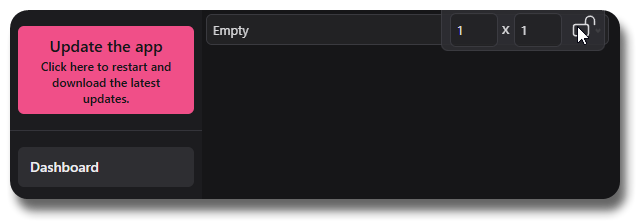
Hovering in the top right corner will reveal a little pop-down. By clicking the padlock to unlock it you can set the grid out how you want it to be laid out by choosing the information you want displayed. Once you have it set to your preference simply click the padlock again to save it.
Toggling the sidebar
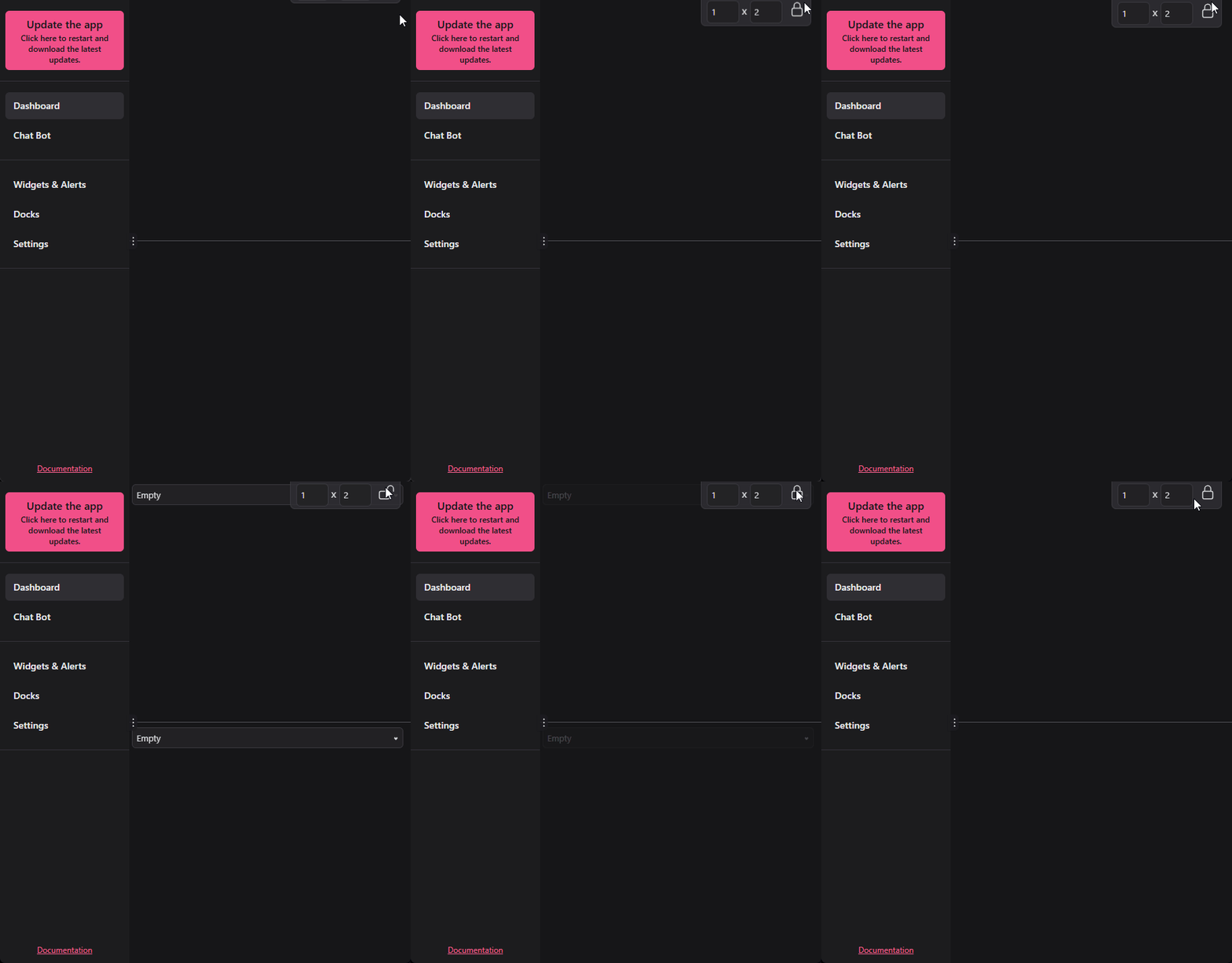
You can hide the sidebar in Casterlabs-Caffeinated by clicking the kebab menu in the middle of the sidebar. This will give you more space for your dashboard widgets.
Dashboard Widgets
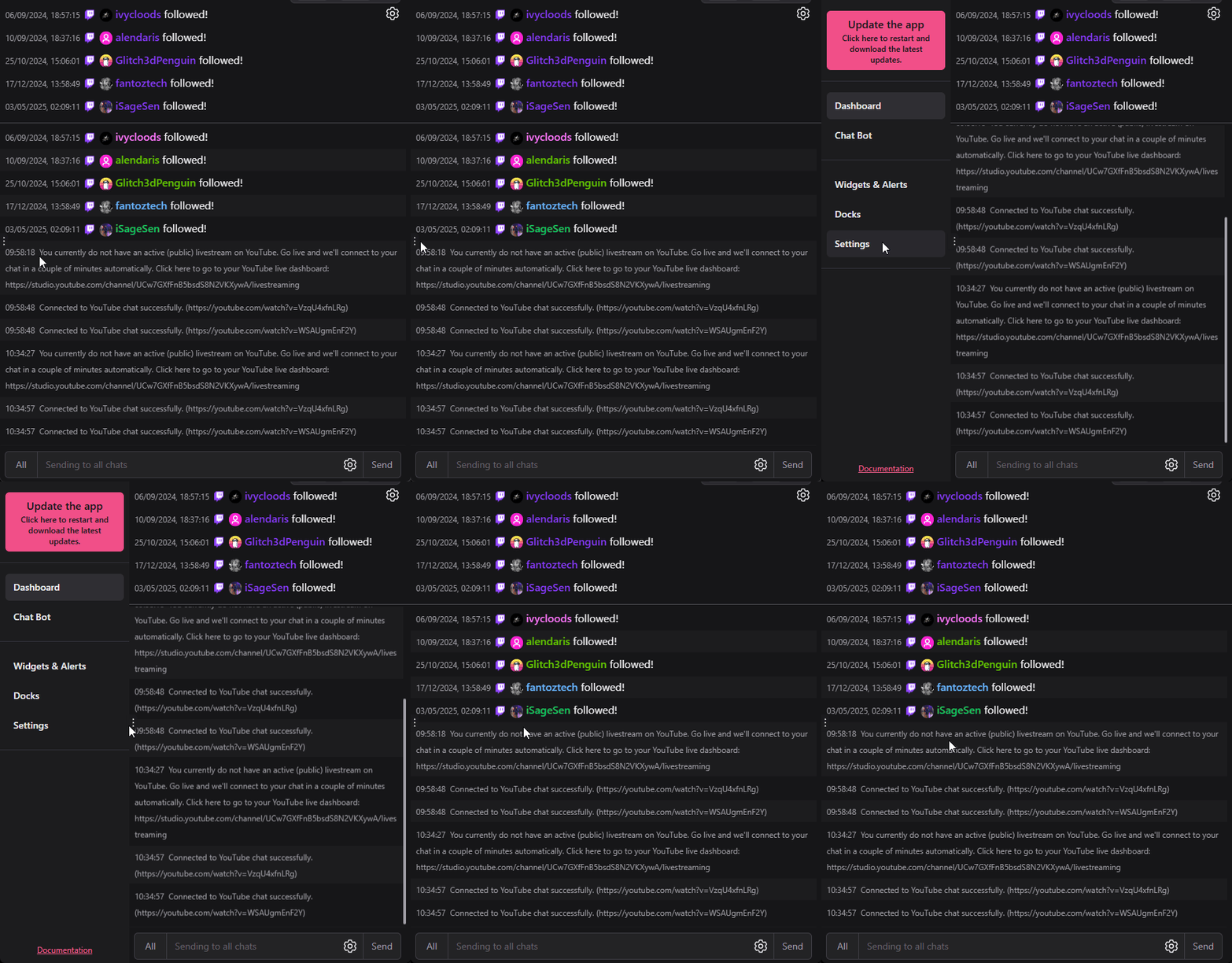
You can add different widgets to your dashboard to display different information about your stream. With the dash unlocked you can select the widget you want to be displyed from the Drop-down menu.
For example, in a 1x2 grid you can have your Stream Chat and your Activity Feed displayed side by side.
If you are multi-streaming to several platforms simultaneously - your stream chat will be unified across all services in real-time in one chat window!
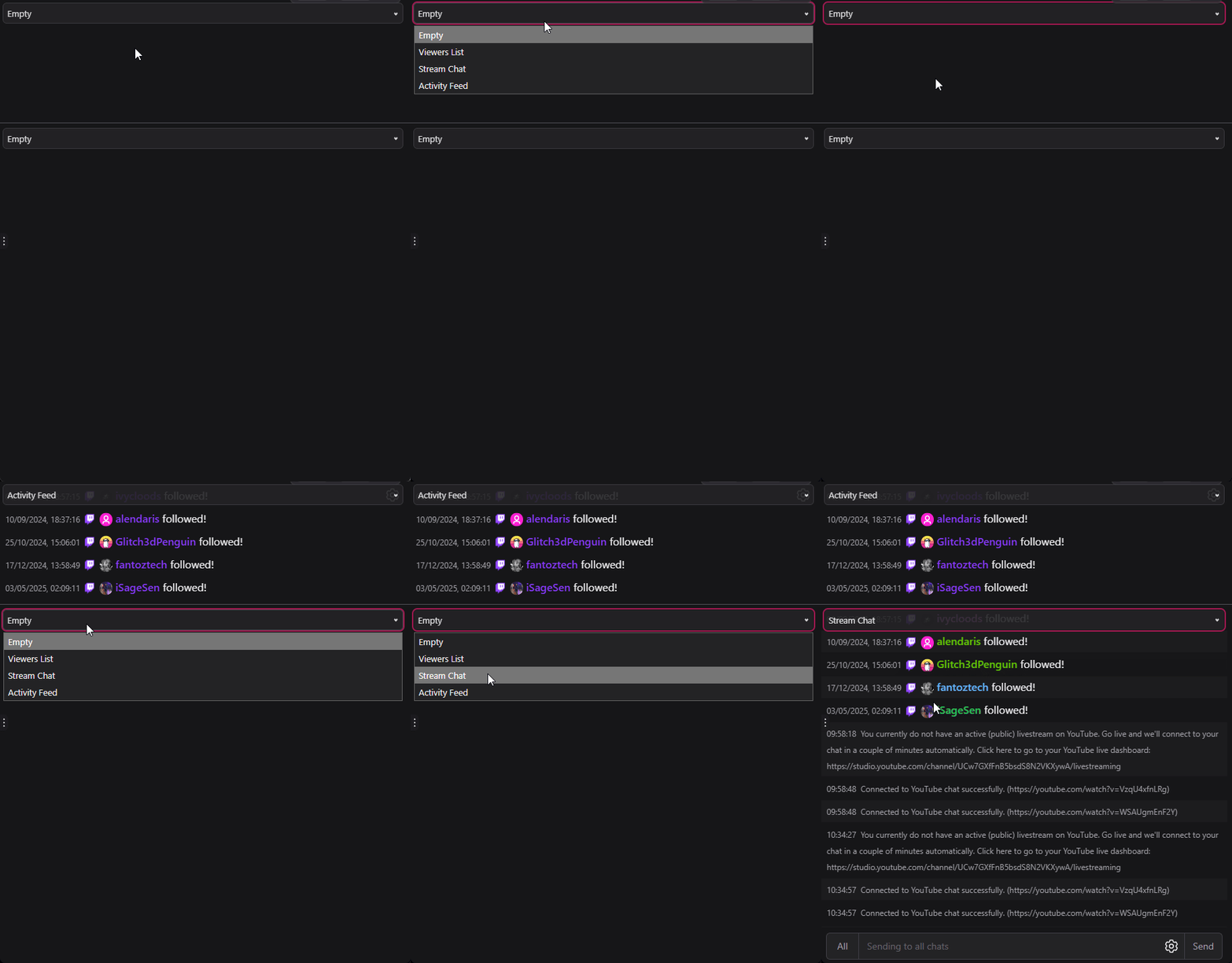
Once you have arranged your dash to your liking, remember to click the padlock again to lock it in place!
All of these widgets are also availiable as custom dock sources for your streaming software - such as OBS. See the Docks documentation for more.